

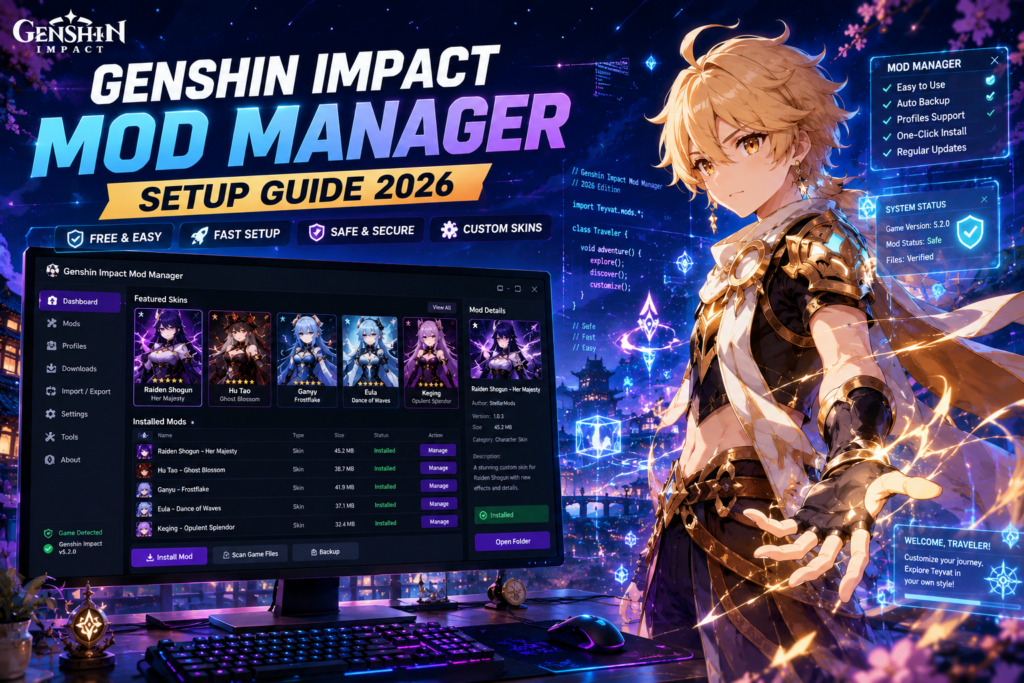
Free Genshin Impact Mod Manager Setup Guide 2026 🚀
Hey there, Travelers! ✨ If you’ve spent any time exploring the massive world of Teyvat, you know how breathtaking the landscapes are and how beautifully designed the characters can be. But let’s be honest—sometimes you want to spice things up. Maybe you want to give your favorite character a completely custom outfit, swap out a weapon skin for a high-poly anime alternative, or adjust some in-game visual effects to better suit your aesthetic.
That is where a genshin impact mod managerhttps://www.youtube.com/watch?v=ZU-CCbez_fI comes in. In 2026, the custom cosmetic modding scene for Genshin Impact is bigger than ever. Thanks to incredible tools developed by the community, customizing your game has become highly streamlined.
In this ultimate, SEO-optimized guide, we will break down everything you need to know about setting up a genshin impact mod installer and manager safely, efficiently, and completely for free. Grab a sweet madame, and let’s dive right in! 🍖

What is a Genshin Impact Mod Manager? 🤔
Before we get our hands dirty with installation files, let’s understand exactly what we are working with. Genshin Impact does not have official mod support. To bypass this, brilliant developers created a tool called 3DMigoto (specifically the GIMI version, which stands for Genshin Impact Model Importer).
3DMigoto works by injecting custom textures and 3D models into the game’s memory as it loads, completely bypassing the need to modify your core game files. It acts as the backbone of all cosmetic modding.
However, manually pasting, editing, and fixing individual folders inside 3DMigoto can quickly become a disorganized nightmare. That is where a modern genshin impact mod managerhttps://alleasyoffer.com/ comes into play. Tools like JASM (Just Another Skin Manager) or HoyoModManagerGo act as a visual control panel. They allow you to:
- 📁 Check boxes to instantly toggle individual character mods on and off.
- 🔄 Automatically update older mods using automated script “fixers.”
- 🌐 Directly download or organize mods downloaded from safe hubs like GameBanana.
- 🎨 Keep your custom skins, custom weapon meshes, and UI overhauls beautifully categorized.
Core Components Needed for 2026 Modding 🛠️
To get a flawless modded setup up and running, you cannot just download a mod folder and drop it into your game directory. You need an established ecosystem of tools. Here is a breakdown of what you will be downloading today:
| Component Name | Primary Function | Why You Absolute Need It |
| 3DMigoto (GIMI) | Core Mod Loader / Injector | The engine that intercepts the game’s rendering pipeline to load custom models instead of default ones. |
| Genshin Impact Mod Manager (JASM / HoyoModManager) | Graphical Interface & Organization | The dashboard where you manage, enable, disable, and sort your various skin mods. |
| Genshin Mod Fixer / GIMI Fixer | Model Structure Repair Tool | Game updates frequently break old mod skeletons. This tool auto-repairs structural code so your mods don’t crash. |
| GameBanana Website | Community Mod Host | The safest and largest open-source depository for verified custom outfits, map skins, and audio packs. |
Step-by-Step Genshin Impact Mod Manager Setup Guide 📦
Let’s walk through the full structural setup from scratch. Ensure your Genshin Impact game client is completely closed before starting this process.
Step 1: Download and Extract 3DMigoto (GIMI)
First, we need to grab the core injector software that makes all of this possible.
- Head over to the official GitHub repository for GI-Model-Importer (maintained safely by open-source community figures like SilentNightSound).
- Go to the Releases tab on the right side of the page.
- Look for the file labeled
3dmigoto-GIMI-for-playing-mods.zip(Avoid the development version unless you are actively planning to code or build your own 3D meshes; the playing version runs significantly faster and removes intrusive green debugging text). - Extract the contents of this
.zipfolder into a dedicated directory on your computer. We highly recommend creating a simple folder likeC:\GenshinModdingto keep things accessible.
⚠️ Important Directory Rule: Never extract your mod manager or 3DMigoto directly into your official Genshin Impact installation or launcher folders. Keep them entirely separate to avoid file corruption or detection loops.
Step 2: Configure the Initialization File (d3dx.ini)
3DMigoto needs to know exactly where your game launcher hides your executable file so it can inject the textures properly.
- Open your extracted 3DMigoto folder and locate the file named
d3dx.ini. - Right-click it and open it with Notepad or Notepad++.
- Scroll down or use
Ctrl + Fto search for the line starting withtarget =. - You will need to change this path to point directly to your
GenshinImpact.exe.- Note: Do not target the standard launcher (
launcher.exe). You want the deep executable file usually located under a path like:C:\Program Files\Genshin Impact\Genshin Impact Game\GenshinImpact.exe.
- Note: Do not target the standard launcher (
- Save the text file and close it.
Step 3: Install Your Genshin Impact Mod Installer/Manager
Now we install our graphical interface—the genshin impact mod manager itself. We will use JASM (Just Another Skin Manager) as our gold standard for this walkthrough.
- Download the latest release of JASM or HoyoModManagerGo from their official GitHub or verified GameBanana tools pages.
- Extract the manager app file directly into your primary modding folder (e.g.,
C:\GenshinModding). - Run the manager application executable file (
.exe). - Upon launching for the first time, the program will ask you to direct it to your 3DMigoto executable path and your Mods folder. Simply click the browse buttons and select the 3DMigoto directory you set up in Step 1.
- Create a nested folder inside your 3DMigoto directory called
Modsif it isn’t already automatically there. The manager will now safely keep track of this location.
Step 4: Adding Custom Skins and Weapon Mods
With the structure successfully built, it is time for the fun part: picking out your new custom designs! 🎭
- Navigate to GameBanana and search under the Genshin Impact section.
- Browse through thousands of free community-made skins. Download your desired skins—they will typically download as
.zip,.rar, or.7zarchives. - Open your genshin impact mod manager (JASM).
- Many modern managers support a simple Drag-and-Drop function. Take your downloaded mod archive and drag it directly into the JASM window.
- Alternatively, you can manually extract the downloaded mod folder and place it straight inside your
3dmigoto/Modsfolder. - Hit the Refresh or Generate button inside your manager dashboard. You will now see your new character skins populate on the list with active checkboxes next to them!
1.Organize and Select:2 Mins.
Check the boxes next to the skins you want active for your play session. Make sure you do not have two conflicting mods active for the exact same character skin simultaneously!
2.Launch the Mod Loader:30 Seconds.
Navigate back to your main 3DMigoto directory and right-click 3DMigoto Loader.exe, then choose Run as Administrator. A black command prompt window will open up and run silently in the background. Leave it open!
3.Launch Genshin Impact:1 Min.
Open up your standard HoYoPlay launcher or click your desktop shortcut to launch Genshin Impact normally. As the game opens, 3DMigoto will safely feed your enabled custom skins directly into the game’s rendering window.
Important Settings to Avoid Broken Textures 👁️
Once you enter the game world, everything should look stunning. However, if your character looks completely invisible, flashes odd colors, or features strangely stretched polygon meshes, it usually comes down to one internal game setting that conflicts with 3DMigoto injection tracking.
To fix this immediately, open your in-game menu, head over to Settings -> Graphics, and look for Dynamic Character Resolution.
🚫 Crucial Fix: Ensure that Dynamic Character Resolution is turned completely OFF.
When this setting is enabled, Genshin constantly alters character texture resolution dynamically to save GPU resources. This constant shifting breaks the memory hooks that 3DMigoto relies on to place custom skins smoothly, causing visual distortions or outright crashes. Turning it off keeps the game’s resolution stable and your custom textures pristine.
Troubleshooting Guide: Common Errors & How to Fix Them 🛠️
Modding an active, live-service game means encountering minor road bumps when new updates deploy. Here is a handy reference list of solutions for the most common issues reported by users.
1. The F10 Key is Your Best Friend
If you are inside the game and decide to check a new mod box or delete an old asset via your mod manager, you do not need to restart your entire game client! Simply pull up your manager, toggle the changes you want, return to your game, and press F10 on your keyboard. The F10 command forces 3DMigoto to instantly reload its entire cache directory, applying your mod selections in real time.
2. Using the Mod Fixer for Outdated Assets
Every time HoYoverse introduces new map mechanics, animations, or alternative character outfits, the baseline code framework changes slightly. If a beloved skin from a year ago looks broken on your screen today, follow these steps:
- Download a verified community Mod Fixer Python script or standalone tool from GameBanana.
- Drop the
GIMI_Fixer.exedirectly into your mainModsfolder. - Run the fixer tool. It will automatically scan every single folder, find mismatched hashing lines, and instantly rewrite them to align perfectly with the modern game client version.
Frequently Asked Questions (FAQs) ❓
Is it safe to use a Genshin Impact Mod Manager? Will I get banned? 🛡️
This is easily the single most asked question in the entire modding community. To give you the most accurate and transparent answer possible: Cosmetic-only modding via 3DMigoto is incredibly safe, but it technically violates the game’s official Terms of Service (ToS).
Because 3DMigoto injects its elements locally inside your RAM to manipulate the visuals on your personal monitor, it does not modify the official server data, your character levels, primogem counts, or combat stats. HoYoverse’s anti-cheat system primarily searches for malicious exploits (like speed hacks, damage multipliers, or chest teleporters).
To ensure absolute safety, follow the golden rules of the community:
- ❌ Never show your UID: If you record gameplay clips, capture screenshots, or stream to platforms like TikTok, YouTube, or Twitch with custom skins active, crop or hide your UID number located at the bottom-right corner of your screen.
- ❌ Don’t boast in-game: Avoid talking about using custom skin mods inside the official in-game co-op chat channels.
- 🔒 Stick to cosmetics: Avoid downloading tools that claim to give you free primogems or cheat menus—those will get your account permanently banned instantly. Stick strictly to verified aesthetic managers.
Can I use these mods on Mobile (Android/iOS) or PlayStation? 📱🎮
Currently, full-scale 3DMigoto loading is exclusively supported on Windows PC. Because mobile and console environments operate on highly locked-down file sandboxes, injecting live shaders locally is incredibly difficult without jailbreaking or rooting hardware, which drastically heightens account safety risks. For a smooth and trouble-free experience, PC remains the ultimate platform for custom designs.
Do mods cost money? 💰
No! The entire baseline ecosystem—from the 3DMigoto loader to visual managers like JASM and HoyoModManagerGo, alongside the individual assets available on GameBanana—is 100% free and open-source. If any third-party website or application demands credit card information or a subscription fee to access a standard “Genshin mod installer,” exit immediately, as it is highly likely malicious software.
Conclusion: Elevate Your Teyvat Journey Today! 🌟
Setting up a genshin impact mod manager is a fantastic way to bring fresh excitement to your daily farming routes, domain runs, and exploration sessions. By keeping your files organized through a graphical interface, disabling dynamic character resolution, and respecting safety guidelines like hiding your UID, you can safely enjoy beautiful custom skins.
Keep your layout clean, remember to hit F10 to update your skins on the fly, and enjoy tailoring your game to match your absolute dream aesthetic. Safe travels through Teyvat, and happy modding! 🗺️✨